The Hidden Danger Sitting on Your Living Room Shelf
I once spent three sleepless nights frantically changing all my passwords because someone accessed my tax files. The weirdest part? They did not hack my computer. They simply logged into my home router because I had left its factory settings untouched [1]. Let us talk about why that flashing plastic box on your shelf is a major security risk—and how to lock it down in under ten minutes.
Imagine waking up to find your bank account empty, your personal emails leaked, and your private photos shared online. You might think you did everything right because you never click on strange links and always use strong passwords on your phone. Yet, a silent enemy could be waiting inside your own living room, hiding inside the tiny plastic box with blinking lights that gives you internet access .
Most of us treat our home routers like simple home appliances, plugging them in once and forgetting about them forever. We trust that the default settings are safe enough to keep cybercriminals away from our personal lives. Unfortunately, this silence is exactly what hackers look for when they scan residential neighborhoods for easy targets.
When your router is configured incorrectly, you are essentially leaving your front door wide open with a giant sign pointing inside. It is not just about someone stealing your internet speed to stream movies. It is about criminals spying on your online banking, capturing your passwords, and controlling your smart home devices [1]. This constant threat can ruin your peace of mind and turn your safe home into a digital trap.
I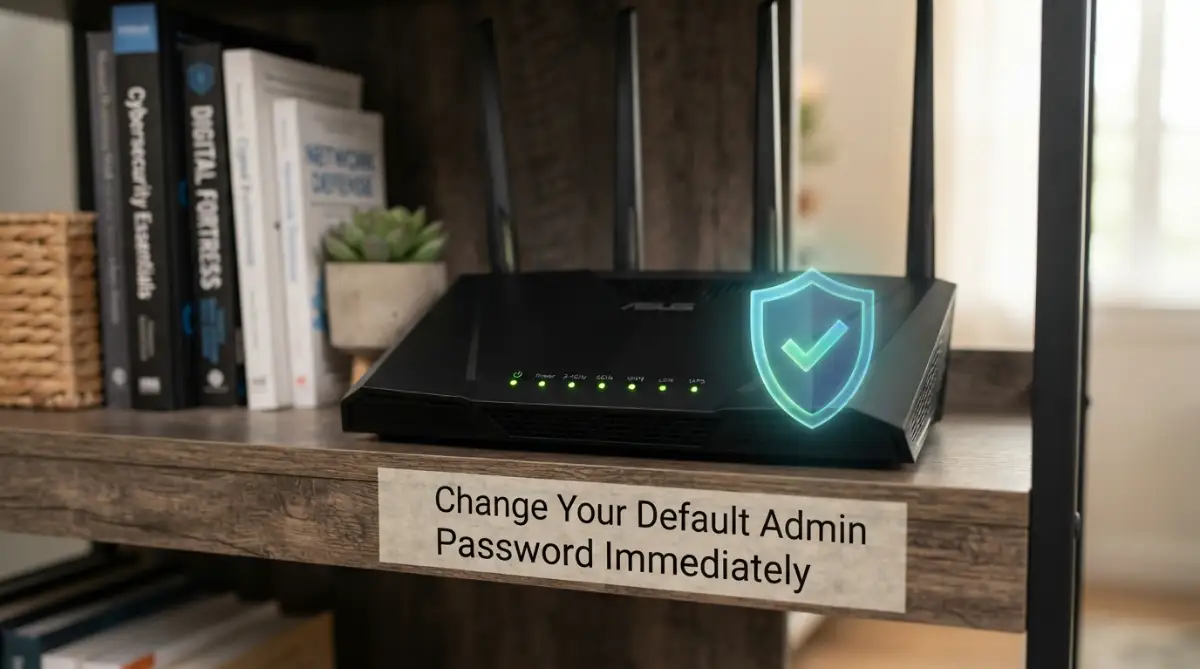
The 30-Second Router Security Blueprint
If you want to quickly secure your home network without reading the deep-dive technical steps, apply these quick wins today:
- Ditch the Default Passwords: Change your admin password immediately to block automated hacking bots [1].
- Isolate Smart Devices: Keep your smart bulbs and cameras on a separate guest network so they can't access your main computers.
- Turn off Remote Access: Disable remote management and WAN pings so your router becomes invisible to internet scans.
- Turn off WPS: Disable the physical PIN system to prevent brute-force attacks on your Wi-Fi key.
Why Your Default Router Setup Is a Goldmine for Hackers
When you first unbox a brand-new router, it is built to be easy to set up. Manufacturers want you to get online in less than three minutes. To make this happen, they ship every single router with simple, identical settings.
This focus on convenience creates a massive gap in your digital defense system. Hackers do not need advanced coding skills to break into these devices. They simply use automated tools to find routers that still use factory settings [1].
Let us look at the most common silent mistakes that put your home network at risk and learn how to fix them today.
Your 1-Minute Router Security Scorecard
Take a quick look at your current settings and grade your network:
- Unchanged Admin Password: F-Grade (An open invitation for bots).
- WPA2 (AES) Enabled: B-Grade (Strong, standard security for most devices).
- WPA3 Enabled + Guest Network Active: A-Grade (Excellent, modern security defense).
What a DNS Hijack Looks Like in Real Life
Imagine sitting down to check your credit card balance. You type your bank’s real URL into your browser. Because a hacker changed your router's DNS settings, your screen loads a perfect copy of your bank's login page [1]. You enter your password, the screen blinks, and nothing happens. In those three seconds, the hacker captured your bank password without ever touching your laptop. This is why keeping unauthorized users out of your admin panel is so vital .
The Dangerous Mistake of Default Admin Logins
The biggest mistake you can make is keeping the factory admin username and password. Do not confuse this with your Wi-Fi password that you share with guests. The admin password is what lets you change the actual settings of your router.
Almost every router brand uses incredibly simple default logins like "admin" for the username and "admin" or "password" for the password. Hackers keep database lists of every single router brand and their default login combinations.
If a hacker gets onto your network, they can type your router's IP address into a browser, enter the default password, and take total control. Once inside, they can change your DNS settings to redirect you to fake banking websites [1]. You will think you are typing your real bank's web address, but you will actually be typing your credentials into a hacker's clone page.
Not sure how to find your router's IP address or access the admin panel? Watch this quick, easy video to see exactly how to log in and change your default password before reading the rest of our tips below!
How to Fix This Right Now:
- Find your router's IP address (usually printed on a sticker on the bottom of the device).
- Type that address into your internet browser's address bar.
- Log in using the default details listed on the sticker.
- Navigate to the System Settings or Administration tab.
- Change the admin password to a unique phrase containing letters, numbers, and symbols.
Leaving Remote Management Enabled by Default
Have you ever heard of remote management? This is a feature built into many routers that allows you or your internet provider to change settings from outside your home.
While this sounds helpful for tech support, it is highly dangerous for regular users. Having remote management turned on means anyone on the internet can try to log into your router's admin panel.
There is absolutely no reason for a normal home user to access their router settings when they are away from home. Leaving this feature active is like putting a door on the back of your house that opens directly onto a busy highway.
How to Fix This Right Now:
- Open your router's settings page in your browser.
- Look for settings labeled Remote Management, Web Access from WAN, or Remote Administration.
- Uncheck the box or select Disable.
- Save your settings and restart your router.
Keeping WPS Active When You Do Not Need It
Wi-Fi Protected Setup, or WPS, is a feature designed to help you connect devices without typing a long password. You usually trigger it by pushing a physical button on the router or by typing a simple 8-digit PIN code.
While physical button pushing is relatively safe, the 8-digit PIN system is incredibly weak. Hackers use simple software to guess this PIN in a matter of hours through brute-force attacks.
Once the software guesses the PIN, the router hands over your complex Wi-Fi password automatically. You must turn this feature off to keep your network secure.
How to Fix This Right Now:
- Go to the Wireless or Wi-Fi Settings inside your router admin panel.
- Find the section labeled WPS or Wi-Fi Protected Setup.
- Switch the status to Disabled or Off.
- Save your changes.
Using Outdated Wi-Fi Encryption Protocols
When you set up your Wi-Fi password, your router asks you to choose a security protocol. Many older routers still support weak, outdated security standards to help old laptops connect.
If your router is set to use WEP or WPA, your network can be cracked in minutes using free tools available online. Even WPA2-TKIP is no longer considered safe against modern hacking methods.
You must ensure your router is using the strongest encryption standard it supports. For most modern homes, this is WPA2-AES or the newer WPA3.
How to Fix This Right Now:
- Access your router's Wireless Security settings.
- Locate the dropdown menu for Security Mode or Auth Method.
- Select WPA2-PSK (AES) or WPA3-Personal.
- Avoid choosing "Mixed Mode" options if you want maximum protection.
Putting Smart Home Devices on Your Main Network
Smart TVs, smart light bulbs, robot vacuums, and security cameras are great additions to any modern home. However, these cheap smart devices are notorious for having terrible built-in security.
If a hacker finds a bug in your smart light bulb, they can use it to enter your home network. Once they get inside through the light bulb, they can easily access your main computer or phone because they are on the same local network.
This is why you must isolate your smart home devices from your personal computers, tablets, and phones.
How to Fix This Right Now:
- Log into your router's admin interface.
- Look for a feature called Guest Network or Multi-SSID.
- Enable a guest network and give it a unique name, such as "SmartHome_Guest".
- Protect this guest network with a strong password.
- Connect all your smart TVs, smart bulbs, and IoT devices to this guest network, keeping your main computers and phones on your primary network.

When I first started setting up smart plugs and cheap security cameras, I lazily connected them all to my main Wi-Fi network. After reading a security report about smart bulbs being easily compromised, I realized I had given potential hackers a direct pathway to my work laptop. Moving all those smart devices to a completely separate guest network took me ten minutes, but it gave me immense peace of mind.
Forgetting to Update Your Router's Firmware
Just like your phone or computer, your router runs on software called firmware. Manufacturers regularly find security bugs in this firmware and release updates to patch them.
However, unlike your phone, your router might not update itself automatically. Millions of people run routers with firmware that has not been updated in years.
Hackers actively look for these unpatched routers because they can exploit known security bugs to bypass your password entirely.
How to Fix This Right Now:
- Go to the System Tools, Firmware Update, or Maintenance tab in your router settings.
- Click the button to Check for Updates.
- If an update is available, follow the on-screen instructions to install it.
- If your router offers an Auto-Update feature, turn it on immediately so you never have to do this manually again.
Myth vs. Reality in Home Wi-Fi Security
Many people believe they are safe because of outdated advice they read online years ago. Let us clear up some common myths about router safety.
Myth 1: Hiding My Wi-Fi Name (SSID) Keeps Me Safe
Many users believe that disabling SSID broadcasting makes their network invisible to hackers. This is false. Free network scanning tools can easily detect hidden networks when your devices try to connect to them. Hiding your SSID only makes it harder for your own devices to connect, without stopping hackers.
Myth 2: Using MAC Address Filtering is Enough
MAC address filtering allows you to list the exact physical devices allowed on your network. While this sounds smart, hackers can easily monitor your wireless traffic, see the MAC addresses of your connected devices, and copy them to bypass your filter.
Myth 3: Nobody Wants to Hack a Normal Person
This is the most dangerous belief of all. Most hacking is automated. Cybercriminals run bots that scan thousands of IP addresses every minute looking for weak, unpatched routers. They do not care who you are; they just want an easy target to exploit.
The Golden Rules for a Lock-Down Router Setup
To make sure your home network stays safe over time, you should practice good router hygiene. Think of these rules as the locks and security cameras of your digital house.
Check Your Connected Devices Regularly
Every month, take five minutes to log into your router and check the list of connected clients. If you see a device you do not recognize, block it immediately. Most modern routers make this easy with a simple "Block" button next to each device name.
Place Your Router in a Safe Physical Location
Physical security is just as important as digital security. If your router is sitting near a window or in a shared hallway, someone could easily press the physical reset button to clear all your security settings. Keep your router in a central, secure area inside your home.
Disable Universal Plug and Play (UPnP)
UPnP is a feature that lets devices on your local network open ports automatically to connect to the internet. While convenient for gaming consoles, malicious software on your computer can use UPnP to open doors for hackers to enter your network. It is highly recommended to turn UPnP off in your router's advanced settings.
Quick Checklist for a Safe Router Setup
Before you finish setting up your home network, run through this quick checklist to make sure you did not miss anything important:
- Changed the default admin username and password.
- Disabled remote management options.
- Disabled WPS features.
- Selected WPA2-AES or WPA3 wireless encryption.
- Created a separate guest network for smart home devices and guests.
- Checked for and installed the latest firmware updates.
- Disabled UPnP settings if they are not needed.
Taking just fifteen minutes today to fix these silent errors can save you from months of stress, financial loss, and compromised privacy. Your home router is the gatekeeper of your entire digital life. Make sure you are the one holding the keys.
Advanced Defensive Settings to Secure Your Network
To truly protect your digital life, you must look beyond the standard setup options. Changing your default password is only your first line of defense. To build an incredibly strong shield around your internet connection, you need to configure several advanced settings that professional security experts use.
These professional adjustments do not require a degree in computer science. They simply require a little patience and a clear understanding of what each setting does. Let us look at how you can make these changes on your own home system.
Switching to Secure Public DNS Servers
Every time you type a website address into your browser, your computer uses a Domain Name System (DNS) to find the correct server. By default, your router uses the DNS servers provided by your local internet service provider (ISP). These ISP servers are often slow, easily monitored, and targetable by local cyber threats.
You can instantly boost your security and speed by changing these settings to use private, secure DNS providers. Free services like Cloudflare or Quad9 block malicious websites before they can even load on your screen. This change stops phishing scams and dangerous downloads at the router level, keeping all your connected home devices safe.
To make this change, look for the WAN Settings or Domain Name System (DNS) options inside your router console. Replace the existing DNS numbers with secure options like 1.1.1.1 or 9.9.9.9 in the Primary and Secondary DNS fields. Once saved, every single device in your house will automatically benefit from these secure lookups.
Making Your Router Invisible to Online Scans
Hackers do not always sit outside your house to attack your network. Instead, they use automated scanning systems that send out signals called "pings" to millions of internet addresses across the globe. If your router responds to these pings, it tells the hacker's computer that an active device is ready to be attacked.
You can easily prevent this by turning on a feature often called Stealth Mode or Disable WAN Ping Response. Enabling this setting tells your router to ignore any unsolicited requests coming from the outside internet. It makes your network act like a dark house with the lights off, causing automated scanning bots to pass you by.
Look for this setting under your router's advanced Firewall or Security tabs. Ensure the option to "Respond to Ping on WAN Port" is set to off or disabled. It is a simple tick box that removes a major target from your home network instantly.
Managing Wireless Signal Bleed
Many people believe that a stronger Wi-Fi signal is always better. However, if your wireless signal extends deep into the street or your neighbor's house, you are giving strangers a chance to try and crack your password. This is known as wireless signal bleed, and it is a common way hackers get close enough to launch local attacks.
Most modern routers allow you to adjust the physical strength of your wireless antenna. This setting is usually called Transmit Power or TX Power Control. By reducing this setting from 100% to 75% or 50%, you can keep your Wi-Fi signal contained inside your actual living space.
This reduction protects your privacy and keeps your connection strong where you actually need it. Experiment with different power levels until you find the sweet spot that covers your home without spilling out to the sidewalk.
Separating Your Network Bands for Better Performance
Modern dual-band routers offer two distinct frequencies: 2.4 GHz and 5 GHz. The older 2.4 GHz band has a longer range but slower speeds, while the 5 GHz band is much faster but has a shorter range. Many people make the mistake of grouping all their devices onto one single band, causing heavy congestion and constant drops.
When your router is overloaded with too many competing devices, it can cause your gadgets to drop connections constantly. This issue is particularly common with smart home accessories that require a steady, uninterrupted signal. If you find your smart devices are dropping their connections, it is often due to signal interference on congested bands [2].
You can easily fix this by keeping your high-speed laptops and phones on the 5 GHz band, while moving older smart home gadgets to the 2.4 GHz band. Grouping them this way stops them from interfering with your main work computers. For a complete guide on resolving these issues, read about how to stabilize smart home connections on home networks to keep your system running smoothly.
Disabling Universal Plug and Play (UPnP)
Universal Plug and Play is a setting that helps gaming consoles and smart devices open ports automatically to communicate with the internet. While this feature makes online gaming easier, it also allows malicious software on your computer to open secret doorways. A simple piece of malware can use UPnP to bypass your router's firewall completely, inviting hackers inside.
Security agencies like the Federal Communications Commission suggest keeping UPnP turned off to protect your home network. By disabling this feature, no device can open an internet port without your manual permission. This stops hidden software from creating dangerous backdoors behind your back.
Navigate to the Advanced Network or UPnP settings in your router's menu. Switch the toggle to disabled and save your settings. If you ever need to open a port for gaming, you can do it manually and safely using port forwarding.

Severe Pitfalls That Leave Home Networks Exposed
When trying to secure a home network, many users accidentally make mistakes that make their security even worse. Understanding these common traps will help you avoid the errors that expose your private data to cybercriminals.
The Dangerous Factory Reset Trap
One of the most common issues occurs when your internet goes down or runs incredibly slow. To fix the issue quickly, you might press the physical "Reset" button on the back of your router with a paperclip. This action does fix minor glitches, but it also wipes out every single custom security setting you have ever configured.
A physical reset returns your router to its original factory state, turning on default passwords, enabling remote management, and disabling guest networks. If you forget to set up those custom defenses again immediately, your network is left completely unprotected. If you must reset your router to fix an internet issue, always schedule ten minutes to go back into the admin panel and reconfigure your custom passwords.
Trusting Your ISP Router Blindly
Many people assume that the router supplied by their internet provider is completely secure out of the box. Unfortunately, internet service providers often order millions of these units with identical, weak default security settings [1]. They rarely push firmware updates to these units unless a massive security leak happens.
If you are serious about protecting your home, you should consider purchasing your own high-quality retail router. If you must use the ISP-provided unit, treat it with the same caution as an unsecured device. Change its settings manually and check for updates regularly to ensure you do not rely on your provider's generic security policies.
Choosing Network Names That Reveal Too Much
When setting up your wireless network name (SSID), it is incredibly tempting to use a friendly name. People often name their networks after their family name, their apartment number, or their business. This choice seems harmless, but it actually gives hackers valuable information about who you are and where you live.
If a hacker scans a neighborhood and sees a network named "Smith_Family_Apartment_3B", they instantly know exactly which physical door to target. They can search public records to find the names of the family members, helping them guess security answers or launch targeted email attacks. Keep your wireless network name completely anonymous and generic, such as "Blue_Sky_Network" or "Quiet_Zone", to protect your privacy.
For example, if your smart wearable is constantly losing its connection and searching for your home network, its battery life will suffer dramatically. If you notice your wearable device is dying too quickly, it might not be a hardware issue at all. You can learn more about how to resolve these power issues by looking at fixes for fast smartwatch battery drain to save your device's battery life.
Action Plan for Your Home Digital Defense
To make sure your home stays safe, do not try to fix everything in one single evening. Instead, take a structured approach to securing your router and maintaining those defenses over time. Here is a simple action plan you can start today to keep your home network safe.
Step 1: Run a Weekly Security Sweep
Mark one day on your calendar each week to quickly log into your router's admin panel. Check the list of connected devices to ensure no unauthorized smart gadgets or neighbors have gained access to your system. Doing this quick check only takes two minutes but keeps you in total control of who uses your internet.
If you spot any device that looks unfamiliar, block it immediately using your router's access control list. This habit ensures that even if someone manages to guess your password, they cannot stay on your network for long.
Step 2: Set Up an Update Schedule
Since many older routers do not support automatic firmware updates, you should check for updates manually once a month. This small task protects you against newly discovered security bugs that hackers use to break into home systems. You can read security bulletins on government websites like the Cybersecurity and Infrastructure Security Agency (CISA) to stay informed about common router threats.
Step 3: Train Your Family and Guests
A secure router is only as strong as the people who use it. Make sure your family members understand not to share your main Wi-Fi password with guests or neighbors. Always direct visitors to your secure guest network so their personal devices never mingle with your private computers and banking information.
Protecting Your Gate to the Digital World
Your home router is the most important guard standing between your family and the wild, unsecure internet [1]. Taking the time to adjust these hidden settings is not about being paranoid; it is about taking control of your personal safety.
By changing your admin logins, disabling remote access, setting up a guest network, and turning off dangerous defaults, you build a solid digital wall around your home. These simple steps protect your finances, your private photos, and your daily peace of mind.
Do not wait until you see unauthorized charges on your bank statement or find your smart home devices acting strangely. Open your browser, type in your router's IP address, and secure your digital home today.
Securing my home router was one of the simplest things I did, yet it completely removed the constant anxiety of a digital break-in. If an everyday user like me can log in and lock down their system in fifteen minutes, you can easily do it too. Take just ten minutes today to change that default password and protect what matters most.
Cybersecurity Safety Disclaimer
The technical advice and settings recommended in this article are designed to improve the security of standard home networks. However, no digital system can be made completely secure against all possible cyber threats. Always keep backups of your important personal data on separate offline devices, and consult a certified network technician if you require professional security solutions for a home business or high-risk digital environment.